Manage items
Once an item is published you may still need to correct, withdraw, move, version, or delete it. All of this happens on the item's Edit page, which administrators reach by opening an item and choosing Edit (or the edit pencil).
The Edit page has tabs across the top — Status, Bitstreams, Metadata, Curate, Relationships, Version History, Access Control, and Collection Mapper.
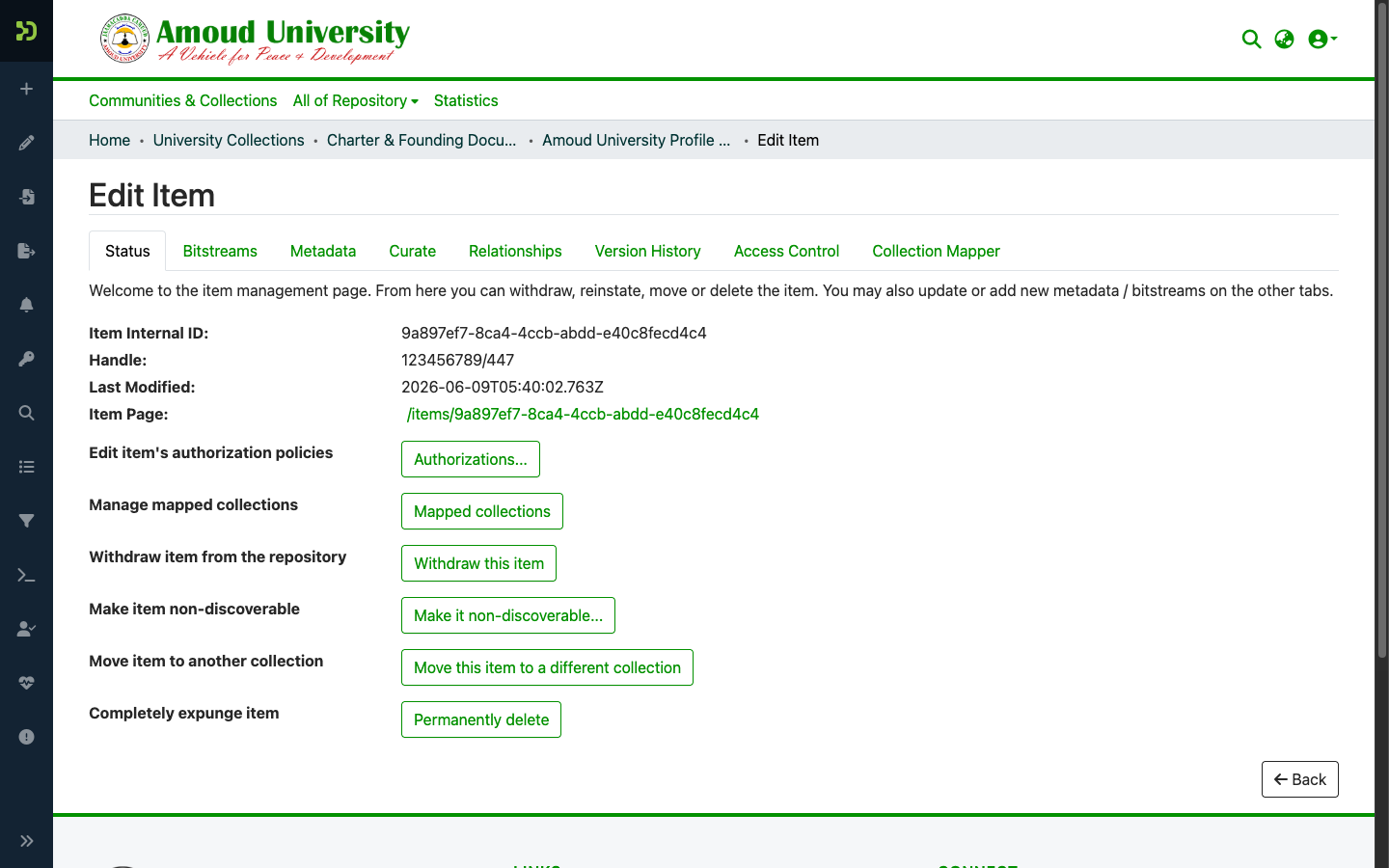
The Status tab — withdraw, move, delete
The Status tab is where the lifecycle actions live:
| Action | What it does |
|---|---|
| Withdraw this item | Removes the item from public view but keeps it in the archive. A withdrawn item can be reinstated later. Use this instead of deleting. |
| Make it non-discoverable | Hides the item from search and browse, but it stays reachable by direct link. |
| Move this item to a different collection | Re-files the item under another collection. |
| Permanently delete | Expunges the item completely. This cannot be undone. |
Withdraw, don't delete — and never break a live DOI
A published item already has a minted DOI and ARK that other people may have cited. Withdraw keeps the record (and its identifiers) resolvable to a "withdrawn" notice; Permanently delete destroys it and breaks every link to it. Only expunge items that were never really published (for example test data). See Identifiers (DOI & ARK).
Correcting metadata or replacing a file
- To fix metadata, use the Metadata tab — edit the field and save.
- To replace or add a file, use the Bitstreams tab.
Edits reach Crossref on the nightly resync
Panel edits don't notify Crossref instantly. The nightly resync pushes corrected metadata to the DOI record — see Identifiers (DOI & ARK).
Versioning — publishing a revised edition
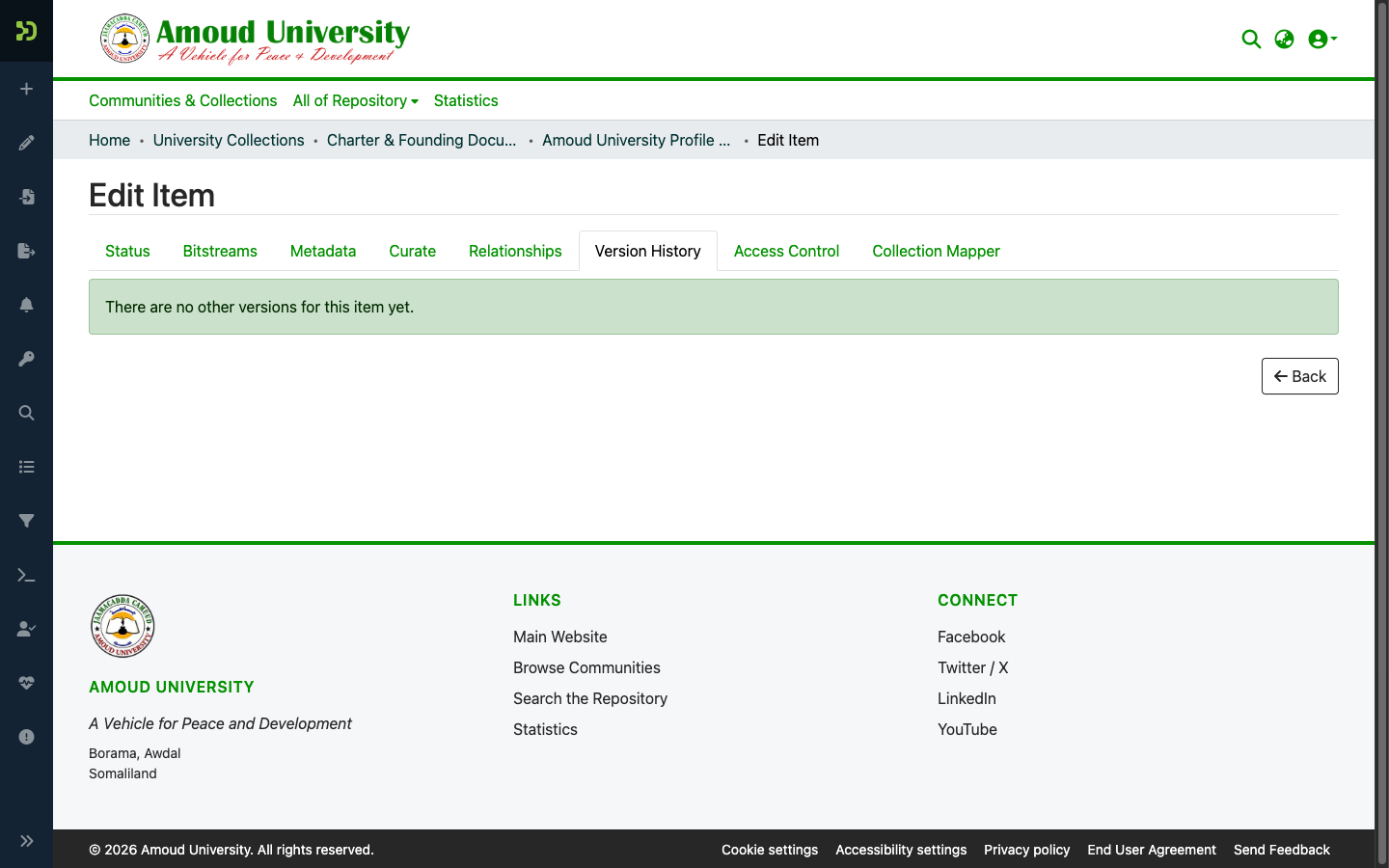
When a work is genuinely updated (a corrected thesis, a new edition), create a new version rather than overwriting the original. Open the Version History tab and choose to create a new version; the repository keeps the old version available and links the two, so existing citations still resolve.
Mapping an item into more than one collection
The Collection Mapper lets a single item appear in several collections without being duplicated — useful when a work belongs to, say, both a faculty and a special series. The item lives in its owning collection and is mapped into the others.