Reviewing a submission
This page walks through handling one task end to end — finding it, claiming it, checking it, and deciding what to do.
1. Find and claim the task
- Click the person icon (top-right) and open MyDSpace.
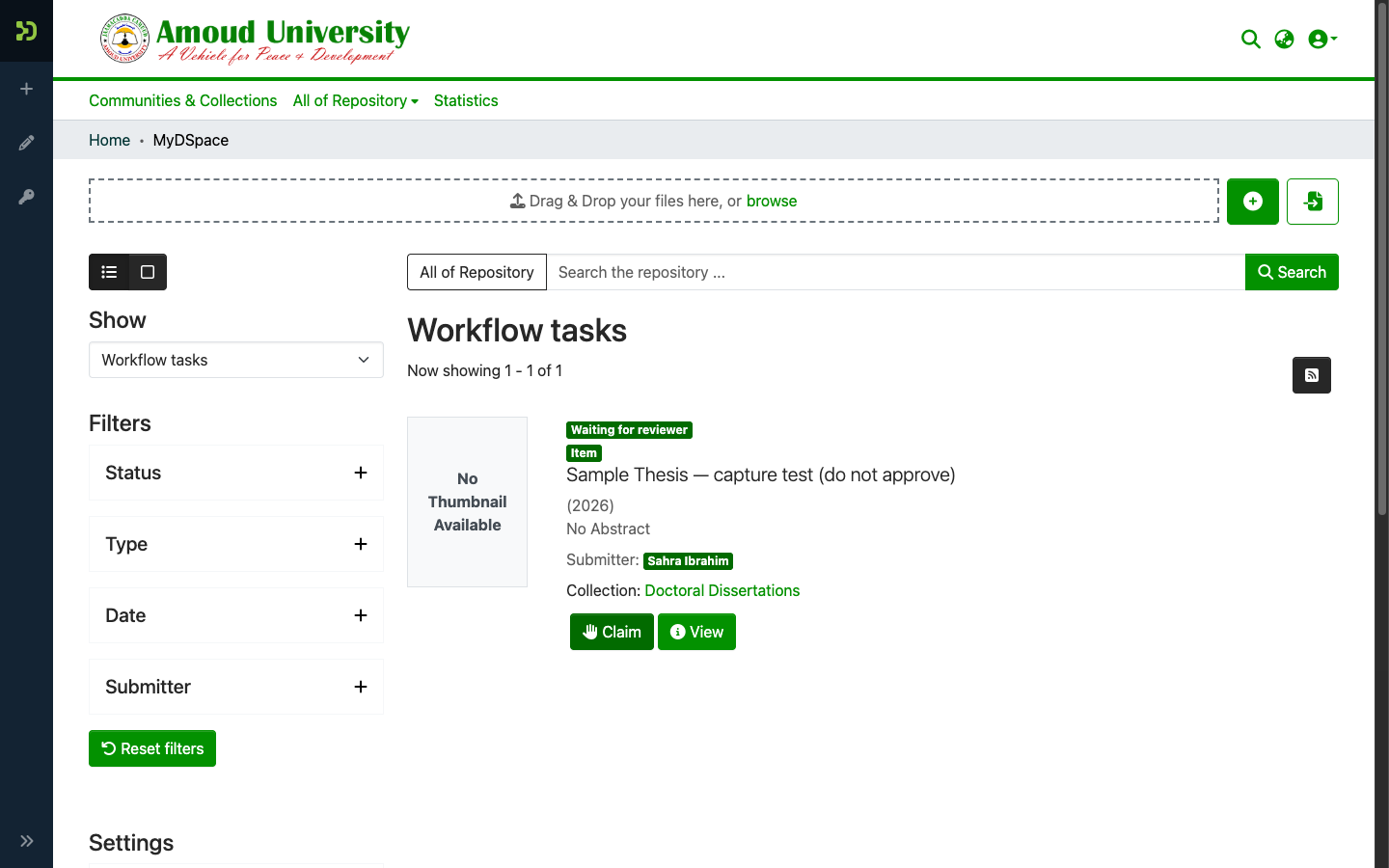
- Set the Show filter to Workflow tasks. Items waiting for review appear as pooled tasks.
-
On the task you want, click Claim to take responsibility for it. It moves to your tasks. (To put it back for someone else, use Return to pool.)
2. Check the submission
Click View (or Edit) to open the item, and confirm:
- Metadata is correct and complete — title, authors (and their order), date, type, language, abstract, keywords. See the metadata form for what each field should contain.
- The collection is right — does the item belong where it was submitted?
-
The file is the right version and may be shared — this is the copyright gate. Open the PDF and read it.
3. Decide
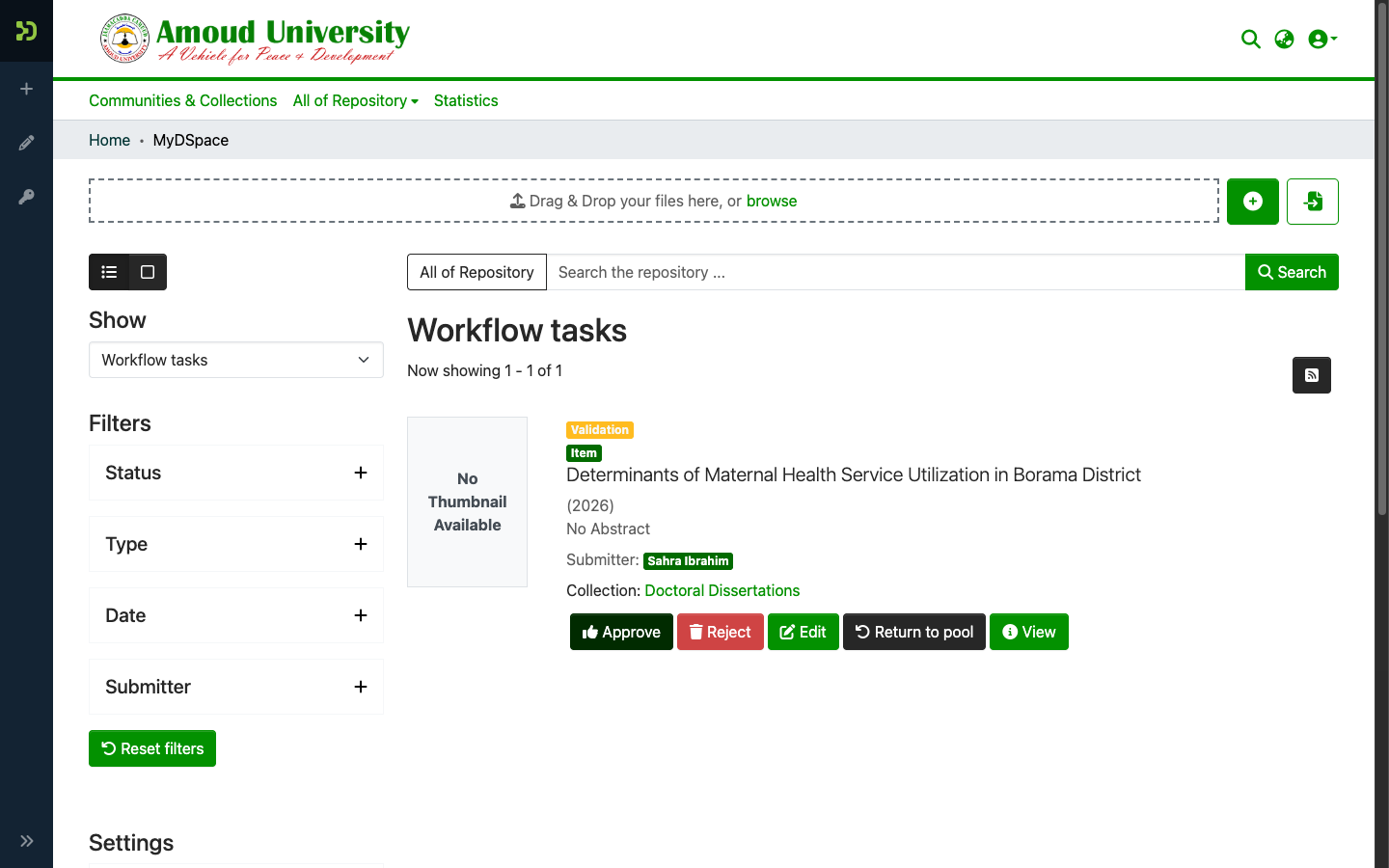
A claimed task gives you four actions:
| Button | What it does |
|---|---|
| Approve | Publishes the item and mints its DOI + ARK. Use it only when the metadata and the file are both correct. |
| Edit | Opens the submission so you can correct the metadata or replace the file, then approve. |
| Reject | Sends the item back to the depositor with a reason you type, so they can fix it and resubmit. Nothing is published and no DOI is minted. |
| Return to pool | Hands the task back to the pool of reviewers so a colleague can take it. It does not go to the depositor. |
Reject vs Return to pool — opposite directions
They sound similar but go opposite ways. Reject sends the item back to the depositor to fix. Return to pool keeps it with the reviewers — it just releases your claim so another reviewer can pick it up.
4. When the submission needs changes
You have two routes, depending on who should make the change.
Route A — fix it yourself (small things). For a typo, a missing field, or a file you can simply replace, make the change for the depositor and then approve:
- Click Edit on the claimed task.
- Correct the metadata, or open Files to replace the PDF and set the right access condition.
- Go back to the task and click Approve.
Route B — send it back to the depositor (Reject with a reason). When the depositor must redo it themselves — they uploaded the wrong work, only they can supply the correct file, or the description needs substantive rework:
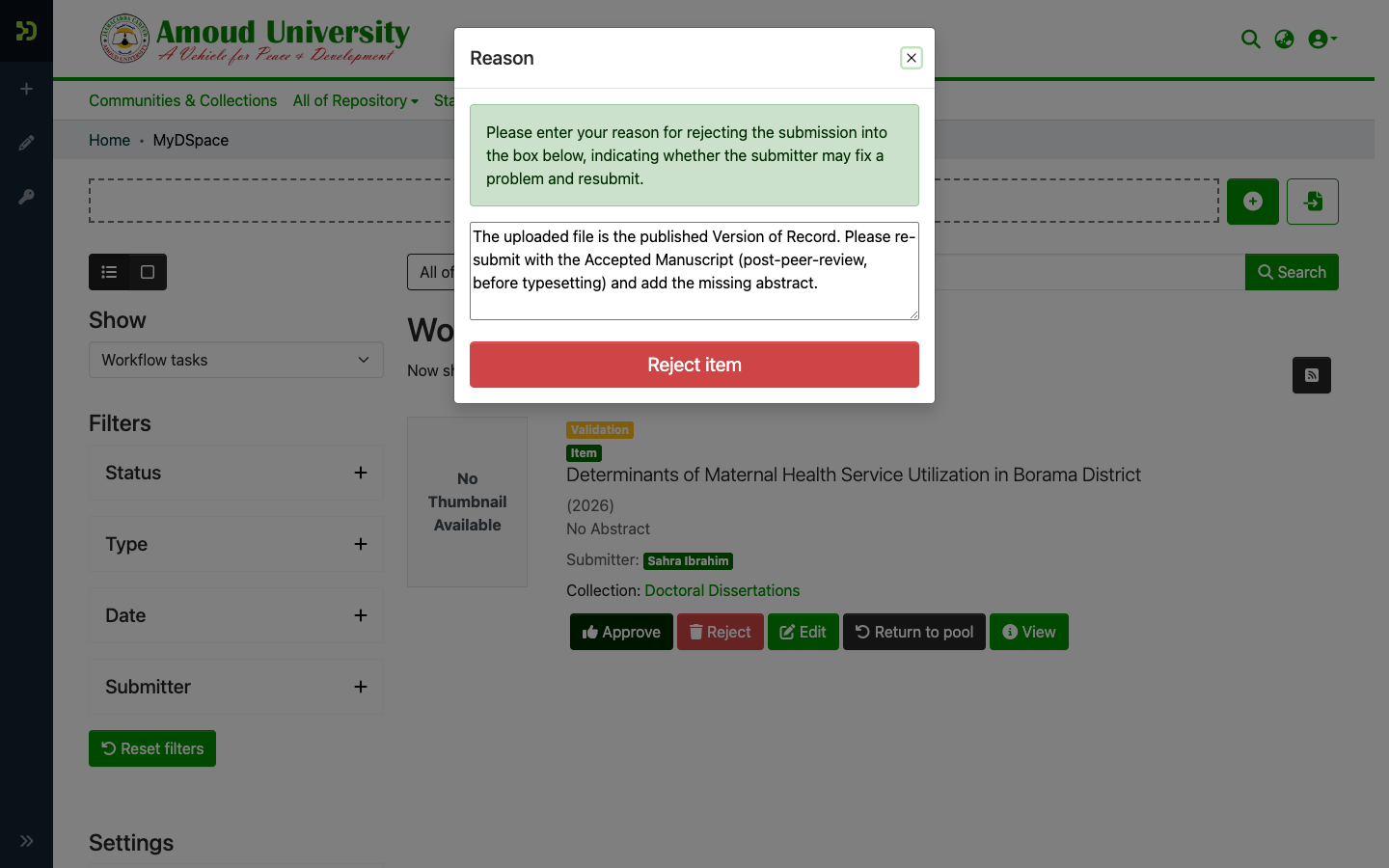
- Click Reject.
- A reason box opens. Write specific feedback — what is wrong and exactly what to do (e.g. "Please re-submit with the Accepted Manuscript, not the published PDF, and add an abstract.").
-
Confirm. The item returns to the depositor's MyDSpace with your reason attached. They edit it and resubmit, and it comes back to the pool.
Write the reason as if it's all the depositor will see
Your reason is exactly what the depositor reads back in MyDSpace — so be clear and specific, and the second submission is more likely to be right first time.
Approve = publish + permanent DOI
Don't approve until the metadata and the file are both right. Approving mints a DOI that is meant to be permanent. If a paper was already published elsewhere, do not mint a new DOI — its existing DOI must be recorded first. See the copyright gate and Identifiers.