Enable a depositor
A new person registers, then asks why they can't upload anything. Enabling them to deposit is a RIC task — and you can do it yourself, without calling an administrator, for the collections your RIC role covers. This page shows how.
There is no "account to approve"
It helps to be precise about what's happening:
- Registration is open. Anyone can create an account, and that account is active straight away — there is no approval step for the account itself, and nothing for you to "switch on."
- What's gated is the submit right. A plain account can read but sees no "New submission" button. To let someone deposit, you add them to the Submitters of the collection they should deposit into.
So "approving a depositor" really means granting submit rights on a collection — that's the whole job.
You don't need to be a site administrator
Your RIC role administers the academic communities and their collections, so you can assign submitters directly from a collection's settings. (Site-wide account tools, under Access Control, remain with ICT — you won't need them for this.)
Before you start
- The person must have already registered and given you the email they signed up with (you add existing accounts; you don't create them here).
- Know which collection they should deposit into. Submit rights are per collection.
Grant submit rights
1. Find the collection
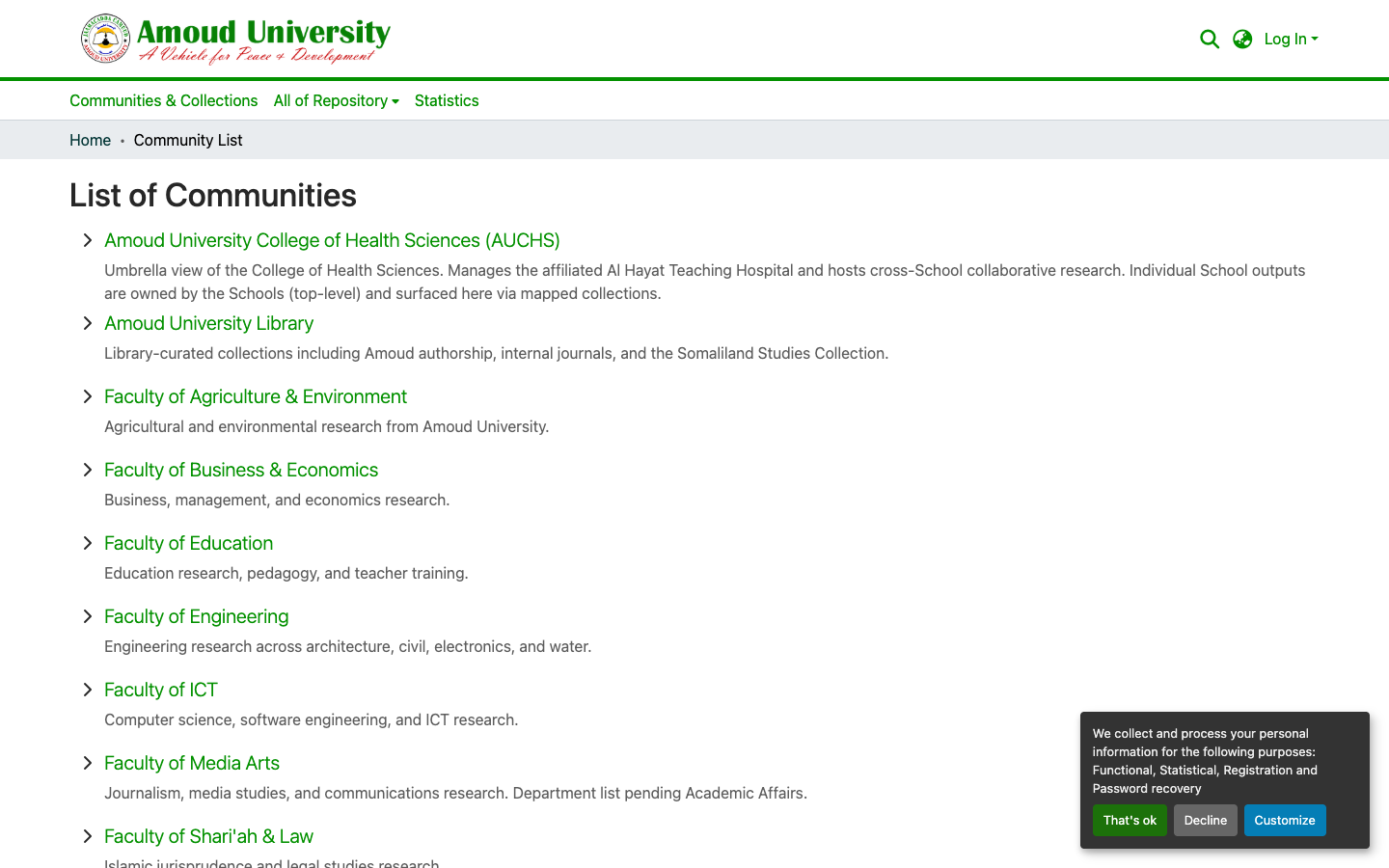
Open Communities & Collections from the top menu and browse to the collection the person should deposit into (or use the search box to jump to it). Submit rights are granted per collection, so make sure you have the right one.
2. Open the collection's settings
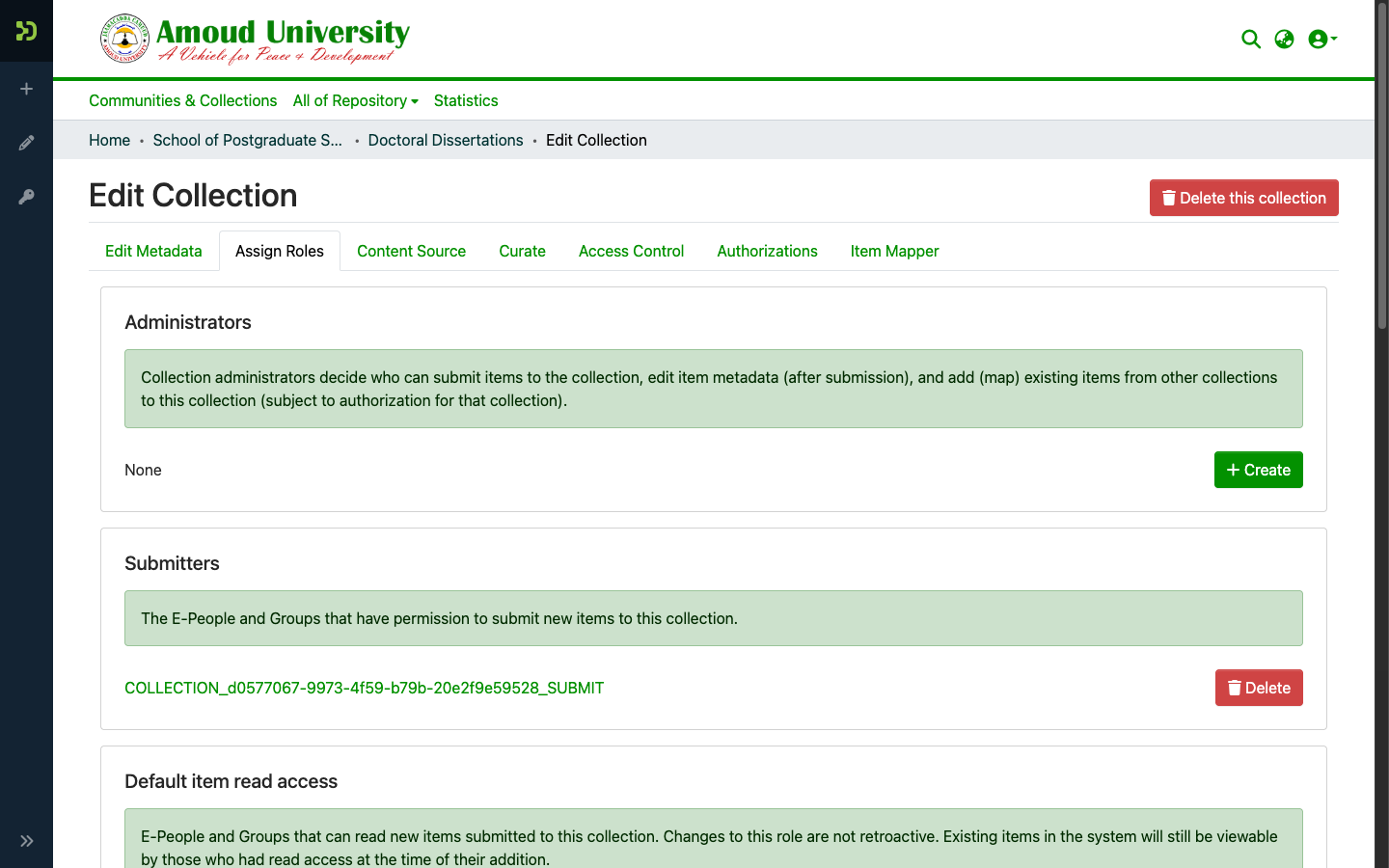
On the collection's page, open the options menu (the ⋮ button, top-right) and choose Edit this collection, then the Assign Roles tab.
3. Add the person to Submitters
-
Find the Submitters card. If a group already exists, click it to open it; if it says None, click Create first.
-
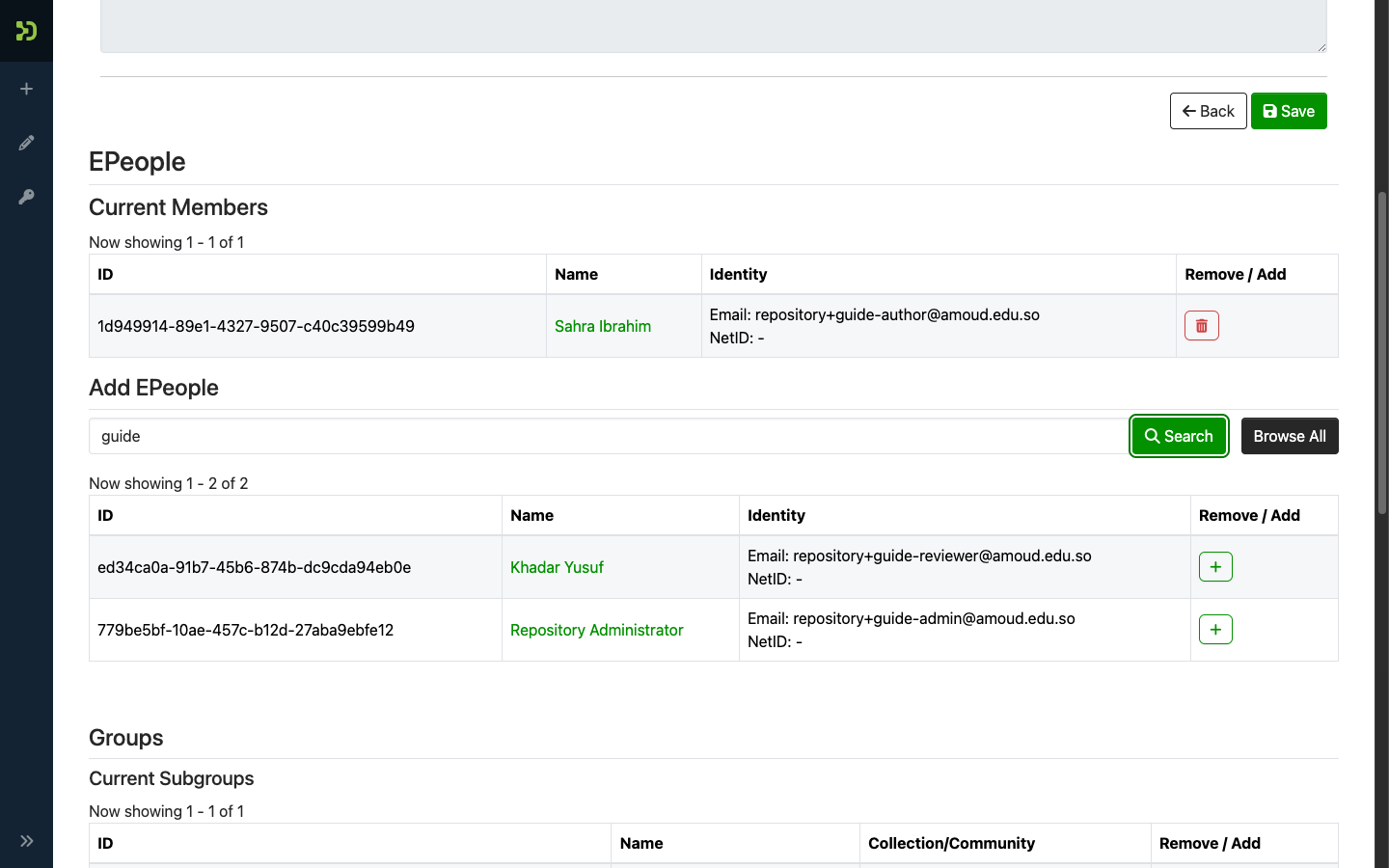
Under Add EPeople, search the person by name or email, then click the green +. They move to Current Members immediately — that's it, they can now submit to this collection. The red bin removes the right again.
-
Tell the depositor to log in again — they'll now see New submission for that collection. Point them at Before you start.
Keep submitting and approving separate
Don't approve your own uploads
Whoever you grant submit rights should not be the same person who approves that collection's items. The pilot keeps these on two different accounts on purpose — one submits, a different one approves. Preserve that separation so nothing is self-published.
What you can't do here
- Collections outside your RIC remit (for example University Collections) stay with ICT administrators — you won't see the edit controls there.
- Editing the account itself (name, password reset, suspension) is an administrator task — see Manage user accounts.
Next steps
- The approval workflow — what happens after they submit
- Reviewing a submission
- Before you start — the depositor's side