After you submit
When you deposit an item, it doesn't go live straight away. It enters a review queue, where a Research & Innovation Centre (RIC) reviewer checks it before it's published.
What happens to your submission
- In review. Your item waits for a reviewer to pick it up and check the description and file.
- Approved → published. If everything is in order, the reviewer accepts it. The item becomes public and its DOI and ARK are minted at this point.
- Returned for changes. If something needs fixing — a wrong file, missing details — the reviewer rejects it back to you with a reason. The item reappears in your MyDSpace; read the reason, make the change, and submit it again.
Submitting is not publishing
Only a reviewer's accept makes an item public. See The approval workflow for what reviewers do.
Track your submission's status
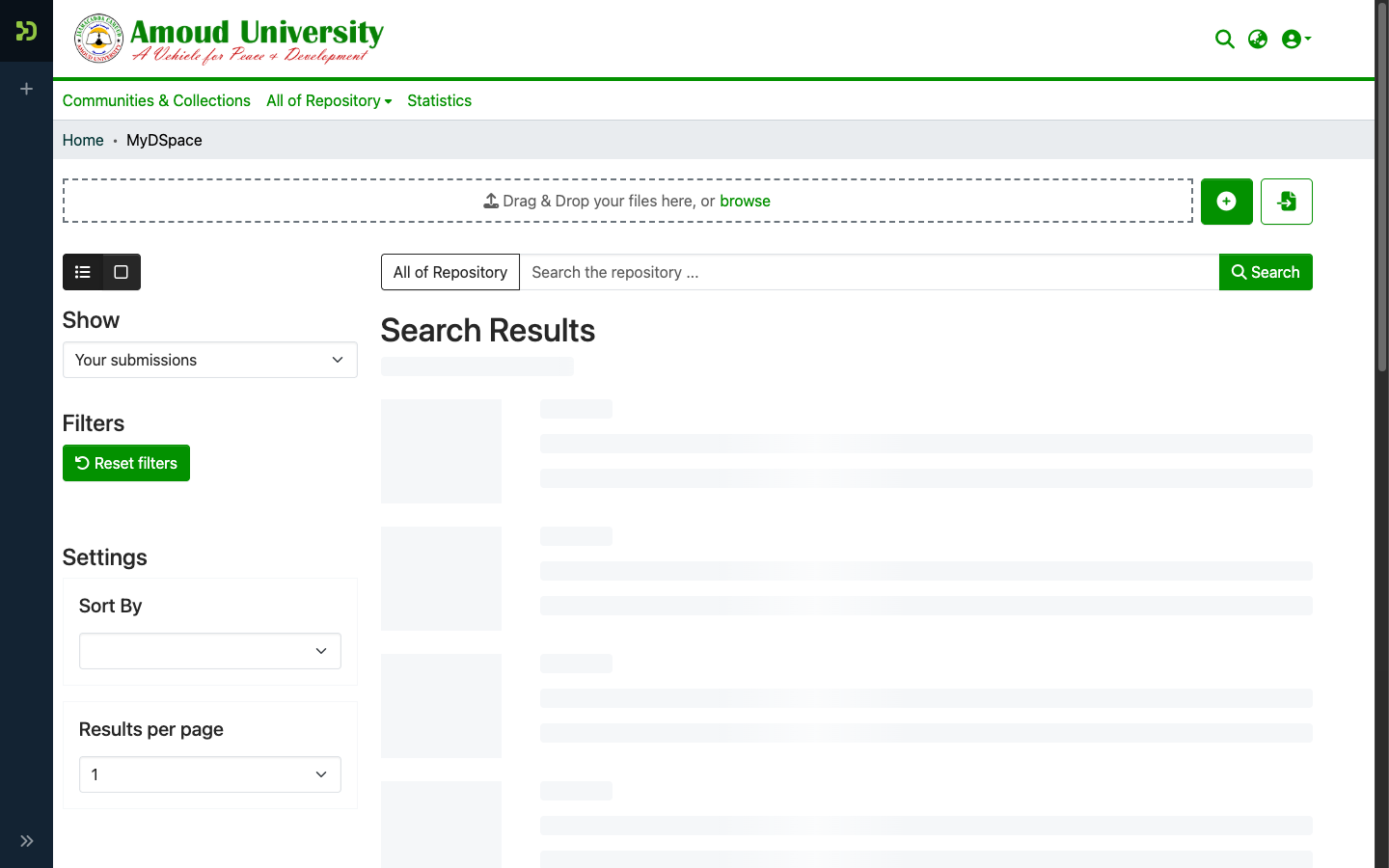
- Click your name (top-right) and open MyDSpace.
-
Your submissions are listed with their current status — in workflow (under review), returned, or archived (published).
If your item is returned
When a reviewer rejects an item, it comes back to MyDSpace for you to edit — with the reviewer's reason shown so you know exactly what to change:
- Open it from MyDSpace and read the reviewer's reason.
- Fix what was asked — replace the file, correct the metadata, and so on.
- Resubmit. It goes back into the queue for review.
How long does review take?
It depends on the RIC's queue. If your item has been waiting a long time, a polite note to the RIC is fine — see Contact & support.
Correcting or updating a published item
Once an item is published it's out of your hands — it now has a permanent DOI and ARK that others may cite, so it can't be quietly overwritten. If you spot a mistake or have a revised edition:
- For a small correction (a typo, a missing field), ask the RIC or an administrator to fix the metadata.
- For a genuinely new version (a corrected thesis, a new edition), an administrator can publish it as a new version that links back to the original.
See how administrators handle this in Manage items, and reach the team via Contact & support.